




Hey there! As a supplier of test chambers, I often get asked about how to connect a test chamber to a computer network. It's a crucial step for many businesses, especially those that rely on accurate and real - time data from their test chambers. In this blog, I'll walk you through the process, sharing some tips and tricks along the way.
Why Connect a Test Chamber to a Computer Network?
Before we dive into the how - to, let's quickly talk about why you'd want to connect your test chamber to a computer network in the first place. When your test chamber is networked, you can monitor and control it remotely. This means you can keep an eye on the temperature, humidity, and other parameters from anywhere in the world, as long as you have an internet connection. It also allows for better data management. You can store all the test data on a central server, making it easier to analyze and share with your team.


Step 1: Check the Test Chamber's Compatibility
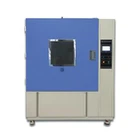
The first thing you need to do is check if your test chamber is compatible with network connectivity. Most modern test chambers come with built - in network interfaces, such as Ethernet ports. If you're not sure, check the user manual or contact the manufacturer. For example, our Environmental Psychrometric Test Chamber is designed with network connectivity in mind, making it easy to integrate into your existing network.
Step 2: Choose the Right Network Connection
Once you've confirmed that your test chamber is network - ready, you need to choose the right network connection. There are two main options: a wired connection or a wireless connection.
Wired Connection
A wired connection, typically using an Ethernet cable, is the most reliable option. It offers a stable and fast connection, which is important for real - time data transfer. To set up a wired connection, simply plug one end of the Ethernet cable into the test chamber's Ethernet port and the other end into your network router or switch.
Wireless Connection
If you prefer a wireless connection, make sure your test chamber supports Wi - Fi. Most modern test chambers have this feature. To connect wirelessly, you'll need to access the test chamber's network settings and select your Wi - Fi network. You'll then need to enter the Wi - Fi password. Keep in mind that wireless connections can be less stable than wired connections, especially in areas with a lot of interference.
Step 3: Configure the Network Settings
After connecting your test chamber to the network, you need to configure the network settings. This usually involves setting an IP address for the test chamber. There are two ways to do this: using a static IP address or a dynamic IP address.
Static IP Address
A static IP address is a fixed address that doesn't change. It's useful if you need to access the test chamber from a specific device or if you want to set up port forwarding. To set a static IP address, you'll need to access the test chamber's network settings and enter the IP address, subnet mask, gateway, and DNS server information.
Dynamic IP Address
A dynamic IP address is assigned by your network router using DHCP (Dynamic Host Configuration Protocol). This is the easiest option, as the router takes care of all the configuration. To use a dynamic IP address, simply select the DHCP option in the test chamber's network settings.
Step 4: Install the Monitoring Software
Once your test chamber is connected to the network and the network settings are configured, you need to install the monitoring software. The monitoring software allows you to access and control the test chamber from your computer. Most test chamber manufacturers provide their own monitoring software, which you can download from their website.
When installing the monitoring software, make sure you follow the installation instructions carefully. You'll usually need to enter the IP address of the test chamber to establish a connection. Once the software is installed and connected to the test chamber, you'll be able to view the test data, set the test parameters, and receive alerts if there are any issues.
Step 5: Test the Connection
After installing the monitoring software, it's time to test the connection. Open the monitoring software on your computer and see if you can access the test chamber. You should be able to view the current temperature, humidity, and other parameters. If you're having trouble connecting, double - check the network settings and make sure the test chamber is powered on and connected to the network.
Tips for a Successful Connection
- Keep the Network Secure: Make sure your network is secure by using a strong password and enabling encryption. This will protect your test data from unauthorized access.
- Update the Firmware: Regularly update the firmware of your test chamber and the monitoring software. This will ensure that you have the latest features and security patches.
- Use a UPS: Consider using an Uninterruptible Power Supply (UPS) for your test chamber. This will protect it from power outages and ensure that the data is not lost.
Other Test Chambers and Their Network Connectivity
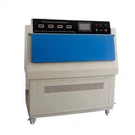
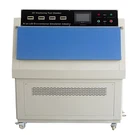
In addition to the Environmental Psychrometric Test Chamber, we also offer other types of test chambers, such as the Lab Vacuum Drying Oven and the Thermal Stability Testing Machine. These test chambers also support network connectivity, allowing you to monitor and control them remotely.
Conclusion
Connecting a test chamber to a computer network is a relatively straightforward process, but it does require some technical knowledge. By following the steps outlined in this blog, you should be able to connect your test chamber to your network and start monitoring and controlling it remotely.
If you're in the market for a new test chamber or need help with connecting your existing test chamber to a network, don't hesitate to reach out. We're here to help you find the right solution for your needs. Whether you're a small lab or a large manufacturing facility, we have the expertise and products to support your testing requirements. Contact us today to start the procurement discussion and take your testing capabilities to the next level.
References
- Manufacturer's user manuals for test chambers
- Network configuration guides for routers and switches
- Online resources on network security and connectivity